• Skip to primary navigation
  • Skip to main content
dma-logo-icon
  • WordPress development
  • Managed Hosting
  • Portfolio
  • Blog
  • Contact
  • WordPress development
  • Managed Hosting
  • Portfolio
  • Blog
  • Contact
Say hello
Hide Search

Archives for July 2013

WordCamp San Francisco 2013

Peter Shilling · Jul 29, 2013 · Leave a Comment

There’s something satisfying about surrounding yourself with like minded people. So when the chance arose to visit San Francisco and attend the 2013 WordCamp it didn’t take too much convincing before plane tickets were purchased.

With just over 800 WordPress developers, designers and users in one place, getting surrounded was not a problem!

What’s a WordCamp anyway?

WordPress is an open source platform, meaning there are literally hundreds of people that contribute to the project. Not just working on code but also the design of the software documentation and support. It’s a big movement with a lot of people involved and they take it very seriosly.

WordCamps are held all over the world, every month there are 20 or more held. San Francisco is the big one though, held each year around this time it’s brings people from far and wide. Over a 2 day period there are around 20 sessions that cover all manner of topics. Some sessions are for the serious code boffins while others are more focused on end users, there is something for every kind of WordPress geek.

State of the Word

San Francisco is also the venue for Matt Mullenweg’s (WordPress co-founder) annual update that outlines some of the achievements throughout the year as well as looking forward to what is coming up in the WordPress ecosystem.

We all love stats and there was no shortage of those, one that’s updated each year is the take up of WordPress around the globe. It’s now attributed to powering 18.9% of the entire web. There is also a healthy number of plugins still being created around 6,000 new ones in the last 12 months bringing the total to over 26,000 in the official repository.

If you’re you’ve got some time, watch the video here, the entire State of the Word runs around 1 hour.

What’s new that’s going to affect me?

Outlined at the conference was what is coming up in versions 3.6, 3.7 and 3.8.

The next release (3.6) will be available in the next couple of weeks and provides some interesting and useful updates. There was a really good video covering some of the new features but I can’t find it anywhere online at the moment. I’ll post it when it’s available.

Let’s look at some of the details that will be coming to your WordPress sites very soon.

Native support for audio and video

Video and audio files can be included now much the same way that you can images. You can simply upload the file and it will be embedded automatically. Certainly makes working with different media types much more simple.

Post Locking and Auto Save

This is going to be a great help for sites that have multiple users working on content simultaneously. WordPress will notify you that someone else is editing a page and offer to take over the editing or leave it be while the other person finishes. The editor will also save your work a lot more regularly, so even if you don’t click update your work will not be lost if there is an interruption to your connectivity.

Revision Management

“Time Machine” for your WordPress posts. Mac OS X users will know what I’m talking about :) The new revision management tool looks brilliant, giving you the ability to move back through the various versions of a page or post. So if you’d like to see what the content was like before you started or before another user edited the document you can. All with a simple to use slider that moves through the various versions of the document.

Versions 3.7 is being worked on right away and will focus on security and stability, while 3.8 is on the road map for around December this year and aims to bring a new look design to the WordPress Dashboard. We’ve been playing with the prototype of this MP6 and it looks really good so far.

So who’s answering the phone in Sydney?

We are on the way back to Sydney this week but still working away on projects and answering support problems, living the reality of the mobile, always on office! Certainly call our 1300 number and leave a message there, but probably you’ll get a quicker response by dropping us an email to support {@} thedma.com.au.
Gravity Forms: Unleash the power that’s in your WordPress site

Peter Shilling · Jul 15, 2013 · Leave a Comment

Gravity Forms is a WordPress plugin that we use on just about every site we build. When training people on how to use their WordPress site we quickly review the setup and (really) basic functionality of the plugin. The truth is that lurking inside these WordPress sites is a functionality powerhouse!

Primarily we use it to power the “contact us” style forms that you see everywhere. The basic setup is this:

  • Build the form with various fields depending on the specific needs
  • Configure a notification to be sent to the site owner when the form is filled in

Simple huh?

It is and for a lot of people that’s all they want. Let’s look a little deeper at this plugin and see what else it can do.

Gravity Forms stores your form entries

This one is fairly straight forward but not something that everyone knows. Each time a form is completed, yes it’s emailed via a notification but it’s also stored inside WordPress. You can review these entries at any time, edit them or even choose to re-send the notifications.

Here’s how to access form entries.

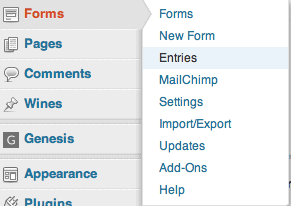
Gravity-Forms-entriesInside your WordPress Dashboard, look for the menu item Forms then from the pop out menu click Entries.

You’re now presented with a list of all the entries of all the forms in your site, there’s a drop down menu in the top right of the interface that allows you to choose which form (if you have more then one) specifically to view.

Missed one of entries? Simply select to resend the notification from this screen.

Export your entries in CSV format

While we’re talking about form entries, did you know that as well as saving the entries into your WordPress database you can also export all or a selection of entries info CSV format? This will allow you to move the data into a spreadsheet to work on in a different way.

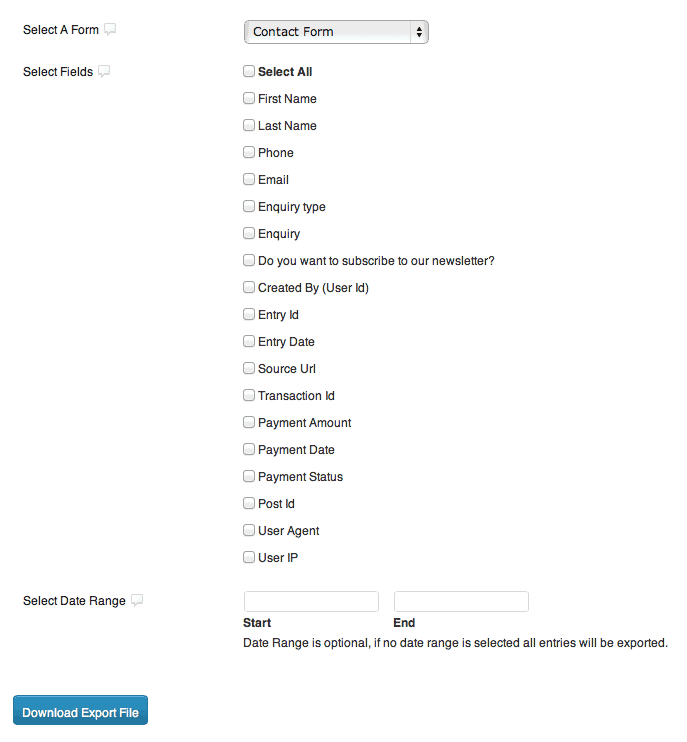
Start from the same pop out menu that’s pictured above but this time choose Import/Export. Again if you have more than one form you choose which form you’d like to work with. Then you’re presented with a list of fields.

Gravity forms exporting data
Gravity forms exporting data – click to view larger

Some of these fields you’ll recognise from your form (in fact all of your fields are there) but there’s also some additional fields. Hidden values that Gravity collects for you, like Entry Date, User IP, Source URL etc..

At the bottom of the form you can choose to select a date range for the export, leave this empty to get all of the entries. Click Download Export File and and the CSV file is on its way.

Connect your WordPress site with your CRM

The most basic use of Gravity Forms is to create an enquiry form on your website. As outlined above this is then send via an email notification to you when someone completes the form.

However if you use a CRM you can inject the enquiry directly into your CRM (in most cases).

This is a great time saver and means that you don’t have to handle enquiries via email. Most web based CRM systems have what’s called an API that allows it to talk to other services on the net. Gravity Forms can talk to many of the CRMs with the use of simple add ons. In fact we’re responsible for one of them, Gravity Forms to Zoho CRM is a plugin that we created some time ago specifically for the Zoho CRM system. There are connectors for CRMs like Salesforce, Highrise, and Work Etc. to name just a couple.

What else can it do?

The point of today’s blog post is to get you just a little more acquainted with a tool that is inside your DMA produced website. This is not even close to covering all the things that we can do with Gravity Forms. Check out this to get you thinking about your site:

  • There’s an add on that allows you to take PayPal payments using a form
  • You can use Gravity to power User Polls, Quizzes and Surveys inside your site
  • Send form data directly to eMail systems like Mailchimp, Campaign Monitor and AWeber
  • Send an SMS when a form is filled in, showing some or all of the form data
  • Allow users to send you content for your site and have it submit as a draft blog post
  • Collect registrations for an event, conference or webinar

Want to learn even more about Gravity Forms?

We love Gravity Forms so much we’ve written a short eBook on how to get started using this brilliant plugin, check it out here on HelpForWP.com  (Our plugin and WordPress training site)

SEO: Develop a keyword strategy

Peter Shilling · Jul 7, 2013 · Leave a Comment

I regularly write about SEO (search engine optimisation) here on our blog because it’s something that I talk to clients about every week. Not only with new clients but WordPress websites from a or more years ago; most business owners know that they need to do something about SEO – even if they’re not really sure exact what they need to do.

So, I’m going to share a simple strategy that I use when training businesses about SEO – Develop a keyword strategy.

Some background to begin with

Let’s clear up a couple of points to start with. Search engines (i.e. Google, Bing etc… ) come to your website, they “read” your content (the text on the pages not in images etc.. ) and they add you to their index, rank you and if you’re lucky – show your website to users that are doing a search.

If you’ve not read it already visit this post from a couple of weeks back “SEO for your WordPress website – In 10 minutes” – it provides a good primer on the topic.

Keywords: what you need to know

Regardless if it’s a new website or an old one that you’re starting to focus on SEO, you need to begin by narrowing down and deciding upon a set of keywords. They don’t have to be single words, so when I say ‘keyword’ throughout this blog post, think of it as ‘keywords and key phrases’.

You’re not going to be able to rank well in the search engines for everything, so I usually recommend settling on about 8 – 15 keywords. Once you decide on these, you need to stick with them. For a long period of time (think 6 – 12 months). Writing a blog post with the keyword “Plumber in Sydney” once is not going to cut it, you need to be consistently reinforcing your chosen keywords over time.

The rest of this post is about how to decide on these 8 – 15.

Let’s work through an example

For the sake of this post let’s use the example of an accounting firm wanting to target people setting up a self managed super  fund. Dry subject I know but it’s real world!

Start broad, then narrow your focus

Begin by writing down all the words and phrases you can think of that make sense for your business and website. All the terms that you think a user would enter when confronted with the Google search box and looking for whatever it is that you do.

Don’t be shy: you can get to 20 or 30 terms with a bit of brainstorming, at this stage the more the better.

Do others think like you?

In all the websites I’ve worked on or consulted to I can answer this one for you. No, others do not think like you.

You know your product, you know exactly where to find you. Before any one of the keywords that you’ve written down can make it onto the final list we need to ensure that other people (and preferably a lot of other people) also use the same word in a search engine.

Do some searches with your ideas

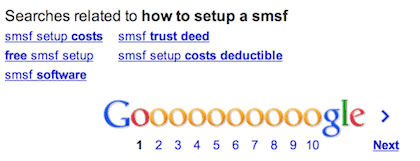
While you’re working on your list actually do some searches on Google for the words. Look at the bottom of the first page and Google, right there is giving you hints on what you should also include.

I’ve searched for ‘how to setup a smsf’; Google will show me related searches, because that’s what other people search for. Also you see human nature at work here. You think “how to setup a smsf” users think “smsf setup costs” – learn from what you see at this stage.

seo wordpress example

Google Trend is your friend

Google Trends (yes there’s an ‘s’ in there but it messed with my rhyming heading!) is a tool that allows you to see if a search term is popular and more than that you can see if the trend is going up or down. There’s no point choosing a search term for your web site that is getting less popular.

So here’s what to do:

WordPress SEO - Google TrendsVisit Google Trends – bookmark http://www.google.com/trends

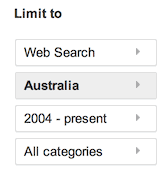
If you are only concerned with people in Australia, choose Australia from the section “Limit To” – it’s on the left hand side of the interface. Leave it on the default Worldwide if you’re looking for trends internationally.

Enter each of your search terms into Google Tends and next to them on your piece of paper give it a score of 1,2 or 3.

  • 1 – the trend is going down
  • 2 – the trend is fairly flat
  • 3 – the trend is going up
google trends for WordPress
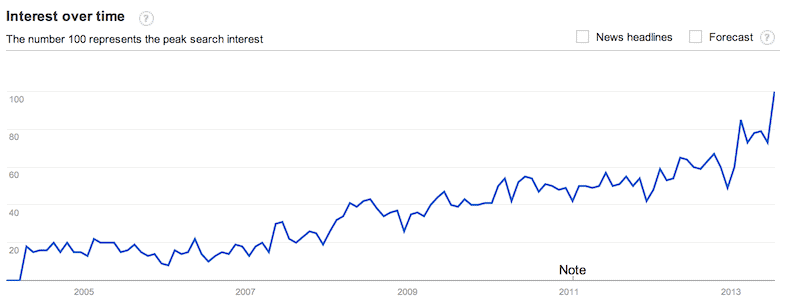
the trend for the acronym ‘smsf’

Very quickly you will gravitate to some keywords and throw out others. This is a good example, ‘smsf’ is a search term that is trending up nicely, do the same for the keyword ‘self managed super fund’; not inspiring at all – people search for the acronym not the full words, so that will help you cull your list right there. This is the interesting part of this simple research you can quickly move to what will be successful inclusions on your keyword list.

Gauge the competition

Ok, so on your list you have 1 , 2, 3 keywords. The 1 words, well they are pretty much gone by now. We need to sift through the 2 and 3 keywords and work out who’s in and who gets voted off the island.

Competition is the next thing to look at.

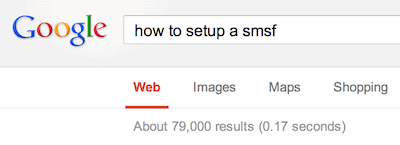
Consider this: if there are 10 other websites vying for a keyword then it’s easier to rank well, however if there are 1,343,937 websites that are in contention – it’s a little more difficult.

Once again a simple Google search is going to tell you the answer.

seo kewords wordpress how to

Now I can’t say here what the magic number is, it varies from term to term. What you do is move through your 2 and 3 ranked keywords and write down next to them the number of pages that Google says responds to that keyword.

Don’t be emotional about your list

Do not be attached to your keywords, you’ve got now, right in front of you the black and white answers. Go with the 2 and 3 ranked words with the smallest amount of competition. What you’ve just done is position yourself to get the quickest success for your website, sticking with words because you feel right about them is not the way to go.

What now?

Well this is usually the first step in a search engine optimisation strategy, before you move on though do this. Print your list of keywords, if there are multiple people writing for your website make sure that everyone has a copy of the keywords. You’ve got to use them, use them consistently and more than anything use them in the correct places.

To get you started with the “where do I use them” read this post: – WordPress SEO for the Genesis Theme Framework.

Good luck with your SEO!

Say hello :)

We'd love to hear about your WordPress project! Whether it's a rebuild of an existing website, a brand new website or you're looking for a team of WordPress professionals to consult on your project, we're here to help.

dma-logo-icon
help-for-wp-logo-dma-2
© 2026 The Digital Marketing Agency
  • Plugins
  • Privacy
Chat to us about your website project